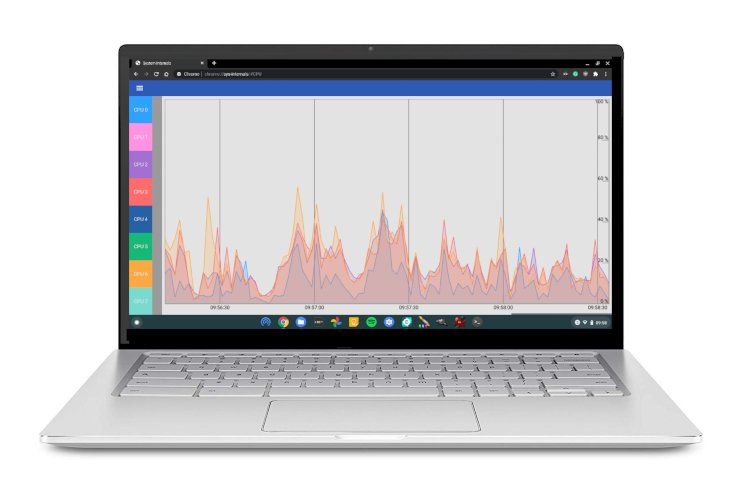
If you've ever felt your trusty Chromebook, once a whirring beacon of speed, start to drag its digital feet, you're not alone. The good news is, getting back to that snappy, seamless experience is often simpler than you think. Optimizing Chromebook performance isn't about magical hardware upgrades; it's about smart management and leveraging Chrome OS's inherent efficiency. Think of it as giving your lightweight laptop a much-needed spring cleaning and a performance tune-up, all from the comfort of your browser.
While Chromebooks are designed for simplicity and speed, especially for web-based tasks, even the leanest machines can get bogged down by accumulated clutter, too many demanding apps, or simply outdated software. The key is understanding how your Chromebook works and then applying targeted strategies to keep it running at its best.
At a Glance: Your Quick Performance Checklist
- Restart regularly: It's the simplest fix for many slowdowns.
- Keep Chrome OS updated: Ensures bug fixes and performance improvements.
- Monitor resource use: Use the Task Manager to spot hungry apps.
- Clean up storage: Delete unnecessary files and apps.
- Prioritize web apps: They're generally lighter than Android or Linux counterparts.
- Limit tabs and extensions: Too many can quickly eat up RAM.
- Consider Hyper-Threading: A potential boost for specific CPUs (with a caveat).
- Powerwash as a last resort: A factory reset can make it feel brand new.
The Chromebook Advantage: Built for Speed, Ready for More
Chromebooks emerged as a refreshing alternative to traditional laptops, offering a streamlined, web-centric computing experience. At their core, they run Chrome OS, a lightweight operating system built on the Linux kernel, primarily designed to run the Chrome web browser. This means they generally require less powerful hardware than Windows or macOS machines, making them affordable and often quite zippy for everyday tasks.
However, the modern Chromebook has evolved. Many now support Android apps (via a containerized Play Store environment) and even full Linux applications (also in a container). While this versatility is fantastic, it also introduces potential performance bottlenecks. Each container adds a layer of overhead, and Android/Linux apps, especially those not fully optimized for Chrome OS, can demand more resources than their web-based equivalents. Understanding this underlying architecture is the first step in truly optimizing your machine.
Unleashing Speed: Your Actionable Checklist
Let's dive into the practical steps you can take, from quick fixes to more advanced configurations, to revive your Chromebook's performance.
Start with the Basics: A Quick Tune-Up
Sometimes, the simplest solutions are the most effective. Before digging deep, give your Chromebook a fresh start.
Restarting Your Chromebook: The Universal Fix
It sounds almost too simple, doesn't it? Yet, a good old-fashioned restart can resolve a surprising number of performance issues. Over time, background processes can accumulate, memory can get fragmented, and minor software glitches can emerge, all of which can collectively slow down your system. A restart clears all temporary data, resets processes, and gives your Chromebook a clean slate.
To restart, click the clock (bottom right corner of your screen), then select the power icon. Once shut down, press the power button to bring it back to life. It's a fundamental troubleshooting step, and often the most overlooked. For a deeper dive into the nuances of restarting, you might find our guide on how to restart your Chromebook particularly helpful.
Keeping Chrome OS Up-to-Date
Google continuously releases updates for Chrome OS, bringing new features, security patches, and, crucially, performance improvements and bug fixes. Running an outdated version can leave your Chromebook vulnerable to inefficiencies and known slowdowns that have long since been addressed.
How to update:
- Click the clock in the bottom-right corner.
- Go to Settings (gear icon).
- In the left sidebar, select About Chrome OS.
- Click Check for updates.
Your Chromebook will download and install any available updates. You'll usually need to restart for them to take effect. Make it a habit to check for updates every week or two.
Taming Your Tabs and Apps
Think of each open Chrome tab and running application as a separate task your Chromebook's brain has to juggle. The more tasks, the harder it has to work, especially on devices with less RAM.
- Close unused tabs: Be ruthless! If you're not actively using a tab, close it. Browser extensions like "The Great Suspender" (or similar tab managers) can automatically pause inactive tabs, freeing up memory without closing them entirely.
- Limit concurrent apps: Running multiple Android apps, a Linux environment, and a dozen browser tabs simultaneously will strain even more capable Chromebooks. Close apps when you're done with them.
Deep Dive: Managing Resources Like a Pro
Now that we've covered the basics, let's get into the nitty-gritty of resource management. This is where you can truly take control of your Chromebook's speed.
Become a Task Manager Master
Just like any operating system, Chrome OS has a built-in Task Manager that shows you exactly what's consuming your system's resources. This is your secret weapon for identifying and eliminating performance hogs.
How to use it:
- Press Search + Esc (the Search key is usually where Caps Lock is on traditional keyboards).
- A window will pop up, listing all running processes: web pages, browser extensions, Android apps, and even system services.
- You'll see columns for Task, Memory, CPU, and Network.
- Sort by CPU or Memory to identify processes consuming the most resources.
- If you see an app or tab with unusually high usage that you don't need, select it and click End process.
What to look for: A single website or Android app constantly using a high percentage of CPU or hundreds of MBs of memory. Note that you can't close essential system tasks or the main Chrome browser process itself. This tool is invaluable for troubleshooting a sudden slowdown.
Declutter Your Digital Workspace: Storage & Apps
Low storage can dramatically slow down any computer, and Chromebooks, especially older or budget models, often come with as little as 16GB. When your storage is nearly full, the system struggles to create temporary files, update, and function efficiently.
Freeing Up Storage Space
How to check and clean storage:
- Go to Settings (gear icon).
- In the left sidebar, select Device > Storage Management.
- Here, you'll see a breakdown of what's using your space.
- Open the Files app (search for "Files" in your app launcher).
- Navigate to "My files" > "Downloads" and other folders. Delete any files, videos, or images you no longer need.
- Remember, anything saved to Google Drive (if configured) doesn't count against local storage, so leverage cloud storage for important files.
The App Audit: Uninstalling Unused Software
Android and Linux apps, while offering great functionality, can be storage hogs and background resource consumers. If you rarely use an app, it's taking up valuable space and potentially running processes you don't need.
How to uninstall Android apps:
- Open your App Launcher (click the circle icon in the bottom-left).
- Find the app you want to remove.
- Right-click (or two-finger tap on the trackpad) on the app icon.
- Select Uninstall.
How to uninstall Linux apps:
Uninstalling Linux apps is a bit more involved and often requires using the terminal. The exact commands vary depending on the specific app and how it was installed (e.g.,sudo apt remove [package_name]). If you're unsure, it might be safer to disable the entire Linux environment if you don't use it.
Embrace the Web: Swapping Android/Linux Apps for Web Versions
This is a powerful optimization strategy. Whenever possible, choose the web-based version of a service over its Android or Linux app counterpart.
- Why web apps are better for performance:
- They run directly in the Chrome browser, avoiding the overhead of separate container environments (Android's ARC++ or Linux's Crostini).
- They typically consume less storage.
- They are often better optimized for keyboard/mouse input and larger screens than Android apps.
For example, instead of the Android app for Twitter, usetwitter.com. Instead of a dedicated Android photo editor, use an online tool like Photopea or Canva. You can even "install" many web apps to behave like native apps, giving them their own window and launcher icon without the performance hit. Just click the three-dot menu in Chrome when on a website, then "Install [App Name]".
Updating All Your Apps (Yes, Even Android Ones)
Just like Chrome OS, individual apps (especially Android apps from the Play Store) receive updates that can include performance enhancements and bug fixes. An outdated app might run less efficiently.
How to update Android apps:
- Open the Play Store app.
- Click your profile picture (top-right).
- Select Manage apps & device.
- Go to the Manage tab, then check Updates available.
- Tap Update all or select individual apps to update.
Extensions: Quality Over Quantity
Browser extensions can add incredible functionality to Chrome, but they also run code in the background, consuming memory and CPU cycles. Too many extensions, or poorly coded ones, can significantly slow down your browser and, by extension, your entire Chromebook.
How to manage extensions:
- Click the Extensions icon (a puzzle piece) in the top-right corner of your Chrome browser.
- Click the three-dot menu next to each extension.
- Select Remove from Chrome for any extensions you don't actively use or those you suspect are causing issues.
- Alternatively, you can toggle them off to disable them temporarily without uninstalling.
- Consider if an extension's functionality can be replaced by a web service. For example, instead of an extension for a to-do list, use a web-based task manager.
Clear Out the Digital Dust: Browsing Data & Cache
Over time, your browser accumulates a vast amount of browsing history, cookies, and cached images and files. While caching is designed to speed up subsequent visits to websites, an excessively large cache can sometimes become counterproductive, consuming storage and occasionally leading to browser slowdowns or errors.
How to clear browsing data:
- Open Chrome settings (three-dot menu in Chrome > Settings).
- Go to Privacy and security > Clear browsing data.
- Choose a Time range. For a thorough cleanup, select "All time."
- Check Browsing history, Cookies and other site data, and Cached images and files.
- Click Clear data.
Important note: Clearing "Cookies and other site data" will log you out of most websites, so you'll need to re-enter your credentials. It's a good step for privacy and potential performance gains, but be prepared for a bit of re-login effort.
Advanced Tweaks: For Power Users (and Those Who Want to Be)
If you've tackled all the above and still crave more speed, these options dive a little deeper into your Chromebook's capabilities.
Understanding and Activating Hyper-Threading
Hyper-Threading is a technology present in some CPUs that allows a single physical processor core to act like two logical cores, enabling it to handle more tasks simultaneously. This can provide a noticeable performance boost, especially in apps and games that can take advantage of multiple processing threads.
However, Hyper-Threading is often turned off by default on Chromebooks due to potential (though often theoretical for most users) security risks, as data from different "threads" could potentially be snooped on. If you're comfortable with a minor, low-probability risk in exchange for performance, and your Chromebook supports it (ChromeOS version 74 or higher is required), you can enable it.
To Turn On Hyper-Threading:
- Open the Chrome browser.
- In the address bar, type or paste:
chrome://flags#scheduler-configurationand press Enter. - Next to "Scheduler Configuration," open the dropdown menu.
- Choose "Enables Hyper-Threading on relevant CPUs."
- Select Restart at the bottom right to apply the changes.
To Turn Off Hyper-Threading (or revert to default): - Open the Chrome browser.
- In the address bar, type or paste:
chrome://flags#scheduler-configurationand press Enter. - Next to "Scheduler Configuration," open the dropdown menu.
- Choose "Disables Hyper-Threading on relevant CPUs" or "Default."
- Select Restart at the bottom right.
Monitor your Chromebook's performance after enabling it. If you notice instability or no significant improvement, you can easily revert the change.
When Less is More: Disabling Power-Hungry Features
Modern Chromebooks come with powerful features, but on budget hardware, these can be resource intensive. If your Chromebook is struggling, consider scaling back on features you don't frequently use.
- Virtual Desks: While fantastic for organizing your workspace, running multiple Virtual Desks with numerous apps and tabs open can be a significant RAM drain. If you're experiencing slowdowns, try consolidating your work to a single desk.
- Multiple User Accounts: Switching between user accounts on a Chromebook requires keeping each user's session in memory. If you share your Chromebook, ensure unused accounts are fully signed out, rather than just switched away from.
- Linux Environment (Crostini): The Linux development environment is a powerful tool, but it runs in a virtual machine (container) that demands CPU and RAM, even when you're not actively using a Linux app. If you don't regularly use Linux apps, consider disabling the environment entirely.
- Go to Settings > Developers > Linux development environment.
- Click Remove Linux development environment. (This will delete all files within the Linux environment, so back up anything important first!)
The Nuclear Option: Powerwash (and When to Use It)
If you've tried everything else and your Chromebook is still sluggish, a "Powerwash" might be the answer. This is Chrome OS's factory reset feature, restoring your device to its out-of-the-box state.
A Powerwash is remarkably straightforward because Chrome OS is designed to be cloud-centric. Your apps, settings, and most data are synced to your Google account. However, any files saved locally in your "My files" > "Downloads" folder, or within the Linux environment, will be deleted. Always back up important local files to Google Drive or an external drive before proceeding.
When to Powerwash:
- Persistent, unexplainable slowdowns.
- You're selling or giving away your Chromebook.
- Major software corruption or persistent glitches.
How to Powerwash:
- Go to Settings (gear icon).
- In the left sidebar, select Reset settings.
- Under the "Powerwash" section, click Reset.
- Follow the on-screen prompts. Your Chromebook will restart, and you'll go through the initial setup process again.
After a Powerwash, your Chromebook should feel brand new, and you can selectively reinstall only the essential apps and extensions, being mindful of resource consumption from the start.
Beyond the Tweak: Sustaining Peak Performance
Optimizing your Chromebook isn't a one-time event; it's an ongoing practice. Cultivate these habits to keep your device running smoothly day in and day out:
- Be mindful of your open tabs: Consider using tab groups or suspending extensions for heavy browsing sessions.
- Regularly review your installed apps: Uninstall anything you haven't touched in a month or two.
- Stay updated: Always check for Chrome OS and app updates.
- Clear your cache periodically: Especially if you notice websites misbehaving.
- Restart often: Aim for at least once a week, or whenever you notice a slight dip in performance.
Your Next Steps to a Faster Chromebook
You've now got a comprehensive toolkit for optimizing Chromebook performance. Start with the easy wins – a simple restart and checking for updates. Then, gradually work your way through resource management in the Task Manager, decluttering storage, and refining your app and extension usage. For those seeking every last bit of speed, consider Hyper-Threading.
Remember, the goal isn't just a faster machine, but a smoother, more enjoyable computing experience. By understanding the core principles of Chrome OS and consistently applying these strategies, you'll ensure your Chromebook remains the agile, responsive device it was designed to be. Pick one or two tips to try today, and feel the difference!